Developer fees
A developer fee lets you charge your own customer on each transaction, on top of the fees Stables charges. Stables collects it for you as part of the transaction and credits it to your developer fee balance, which you can pay out to your Balance.
How it works
Your developer fee has two parts. Set either one, or both:
| Part | What you set | Limit |
|---|---|---|
| Conversion fee | A percentage of each transaction. | 0.01% to 10%, two decimals |
| Fixed fee | A fixed USD amount on each transaction. | 0.01 to 50 USD, two decimals |
- One setting for your whole organisation. It applies to transfers and payment route deposits, and not to OTC trades. The quote is the source of truth: when a developer fee applies, the quote carries a
developer_feesgroup. - Your customer pays it. The fee is taken out of the customer's amount along with the Stables fees. On a quote that fixes the amount the recipient receives, the amount to send is increased to cover it instead.
- It never changes what Stables charges. The Stables conversion, processing and orchestration fees are the same with or without your fee.
- It is frozen with the quote. A change to your developer fee applies to quotes created after the change. Quotes and transfers that already exist keep the fee they were priced with.
For example, with a conversion fee of 0.5% and a fixed fee of 0.50 USD, a 100 USDT transfer carries a developer fee of 1.00 USDT: 0.50 from the percentage and 0.50 fixed.
You can set your developer fee in two ways: in the dashboard or with the API. Both change the same setting, so a change made one way shows up the other way too.
Configure via the dashboard
You need the Admin role in your organisation, with permission to change fee settings.
1. Open the Developer fee settings. Open Settings from the gear icon in the top bar, or from the menu under your name. Under Organization settings, open Developer fee.
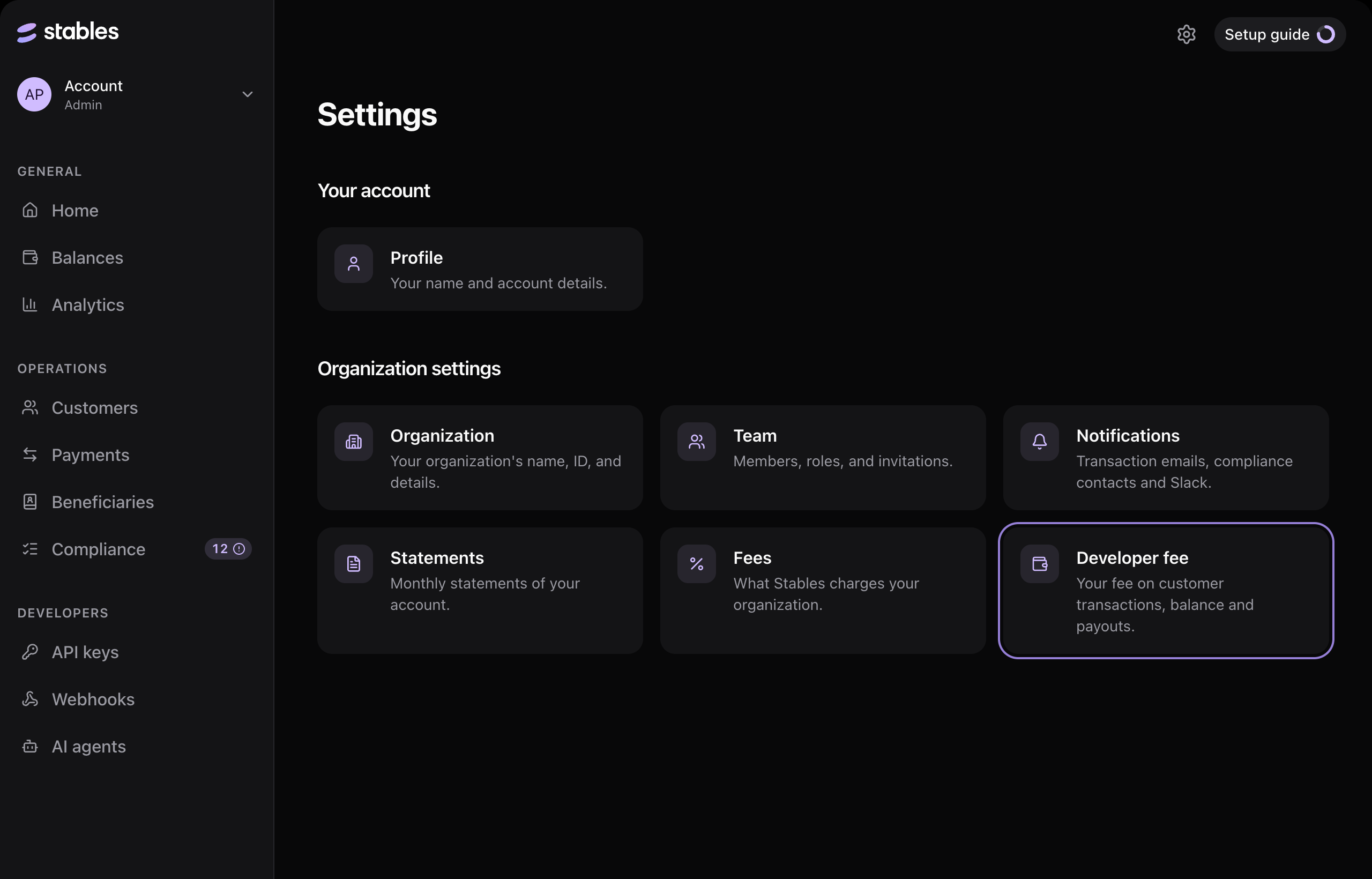
Settings → Organization settings → Developer fee
2. Find the part you want to set. The first two rows are the two parts of your fee: Conversion fee and Fixed fee. Each shows its current value, or Not set. Below them are your available balance and the minimum payout.
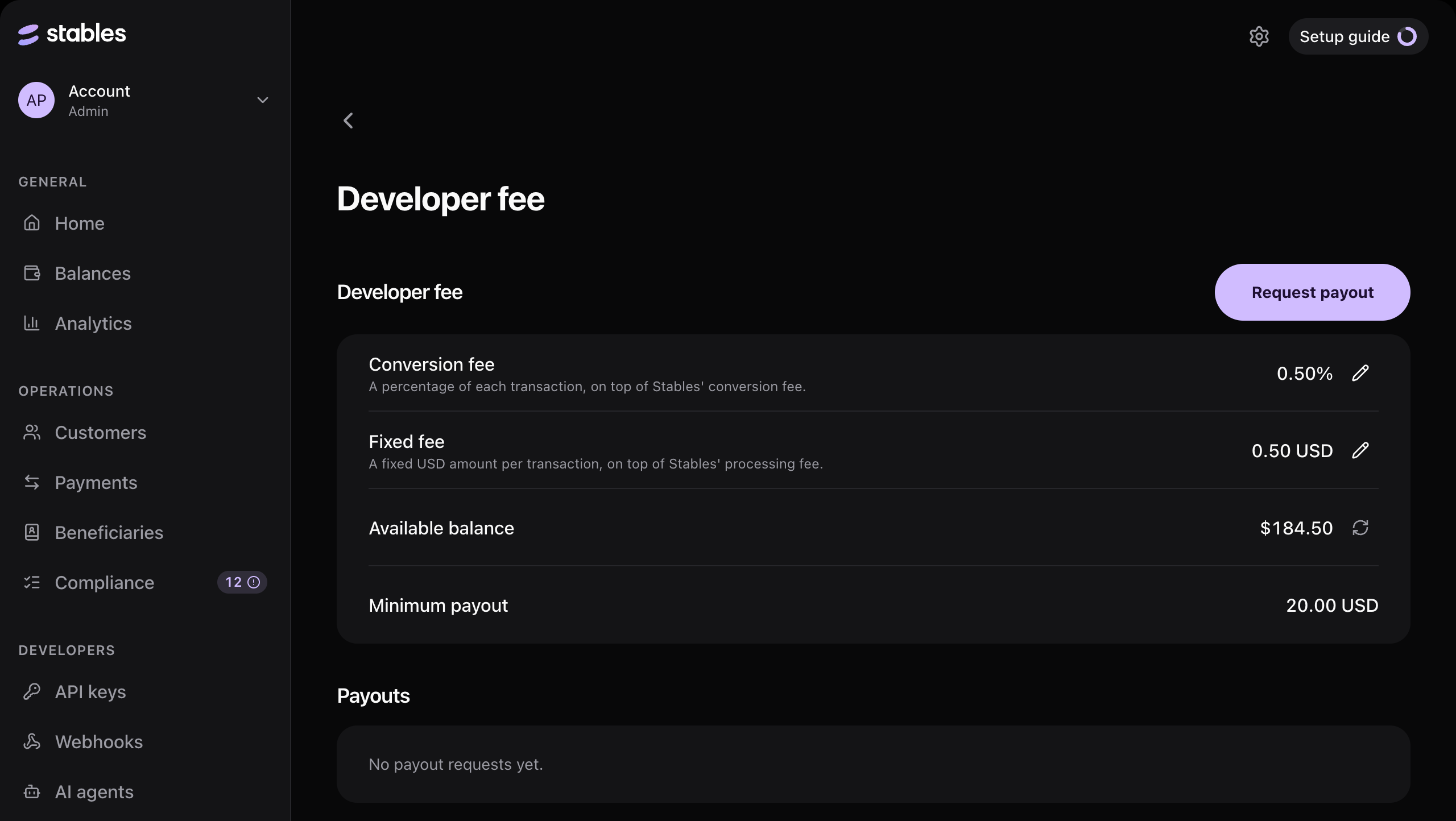
The Developer fee page
3. Change it. Click the pencil beside the part you want to change. Enter the value: a percentage for the conversion fee, or a USD amount for the fixed fee. Click the tick to save, or the cross to cancel.
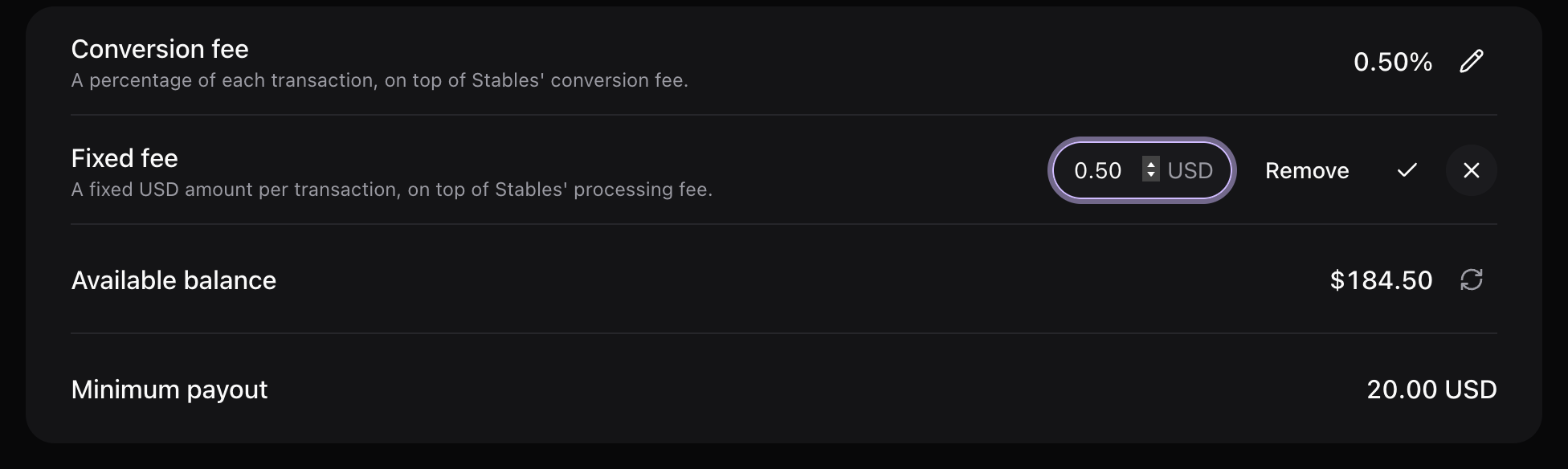
Editing the fixed fee
Each part is saved on its own. Changing the conversion fee leaves your fixed fee as it is, and the other way round.
To stop charging one part, click its pencil and then Remove. The other part stays in place. Removing the only part that is set removes your developer fee altogether.
If you can open the page but see no pencil, your account can view fee settings but not change them. Ask an administrator of your organisation.
Configure via the API
The same setting is available at /api/v1/developer-fee, authenticated with your API key.
Read it
curl "https://api.sandbox.stables.money/api/v1/developer-fee" \
-H "X-Api-Key: YOUR_API_KEY"{
"developer_fee_percent": "0.50",
"developer_fee_fixed_amount": "0.50"
}A part you do not charge is null.
Set or change it
curl -X PUT "https://api.sandbox.stables.money/api/v1/developer-fee" \
  -H "X-Api-Key: YOUR_API_KEY" \
  -H "Content-Type: application/json" \
  -d '{
    "developer_fee_percent": "0.50",
    "developer_fee_fixed_amount": "0.50"
}'| Field | Description |
|---|---|
developer_fee_percent | Your conversion fee, as a percent. A decimal string such as "1.25". |
developer_fee_fixed_amount | Your fixed fee, in USD. A decimal string such as "0.50". |
How each field is treated:
- Sent with a value: that part is set to the value.
- Left out: that part keeps its current value. A request that only sends
developer_fee_percentnever changes your fixed fee. - Sent as
null: that part is no longer charged.
At least one part must remain. To remove your developer fee altogether, use DELETE.
Remove it
curl -X DELETE "https://api.sandbox.stables.money/api/v1/developer-fee" \
  -H "X-Api-Key: YOUR_API_KEY"
See the API reference: Get Developer Fee, Set Developer Fee, Remove Developer Fee.
Where your customer sees it
Once you charge a developer fee, every quote, transfer and payment route deposit carries a developer_fees group beside the stables_fees group, and the fee is counted in total_fee. See Fees for the fields.
In the dashboard, fees are then shown as two rows that expand into their parts:
- Stables total fees: conversion fee, processing fee and, where it applies, orchestration fee.
- Developer fees: your conversion fee and your fixed fee.
This appears on the quote when you create a transfer, on the transfer and deposit detail pages, and on receipts. If you charge no developer fee, the dashboard shows the Stables fees only.
Your developer fee balance
Your developer fees are held by Stables and tracked as one balance in USD.
- When it is credited. The fee is added to your balance when the transaction completes. A transaction that fails or is cancelled adds nothing.
- Where to see it. Settings → Developer fee shows your available balance, any pending withdrawal, and a history of every fee earned and every withdrawal, with the transaction each fee came from and the rate and fixed amount it was priced at.
Withdraw to your Stables Balance
Once your developer fees have accrued, you withdraw them into your Stables Balance: the balance you hold with Stables in USDC or USDT. They are not sent to an outside wallet directly. Withdrawals are made in the dashboard; there is no API endpoint for them.
1. Request it. Open Settings → Developer fee and click Request payout.
2. Choose where it lands. Pick the network and the stablecoin, USDC or USDT. It is paid into your own Balance wallet on that network.
3. Confirm. The withdrawal is for your whole available developer fee balance, and one USD of developer fee balance pays one unit of the stablecoin.
What happens next
Stables sends it automatically from its own funds, usually within minutes, and pays the network fee. You can follow it under Payouts on the same page:
| Status | Meaning |
|---|---|
requested | Received and waiting to be sent. You can cancel it while it has this status. |
processing | Being sent to your Balance wallet. |
sent | Arrived. Your developer fee balance went down and your Stables Balance went up by the same amount. |
rejected | Stables declined it, with a reason. Your developer fee balance is unchanged. |
cancelled | You cancelled it. Your developer fee balance is unchanged. |
If it cannot be sent automatically, it stays requested and Stables sends it by hand, so it takes longer but you do not need to do anything.
While a withdrawal is open, its amount shows as pending on both balances. Fees that accrue after you request it stay in your developer fee balance for the next withdrawal.
The arrival in your Balance is a move between your own Stables balances, not a deposit, so it is not screened and does not need a whitelisted wallet.
Rules
- Your developer fee balance must reach the minimum payout: 20 USD.
- You need a Balance wallet on the network you choose: Ethereum, Polygon or Solana for USDC and USDT, or Tron for USDT.
- One withdrawal can be open at a time.
- Withdrawals are available in production only. In sandbox, developer fees accrue so you can test the flow end to end, but they cannot be withdrawn.
Moving it out of your Balance
Once it is in your Stables Balance, it is ordinary Balance money. You can use it to pay for transfers, or withdraw it to one of your whitelisted wallets. That second withdrawal follows the Balance rules: Stables reviews it before it is sent, and it has its own minimum and fee.